Why Won't My VPN Connect? Common Causes and Quick Fixes
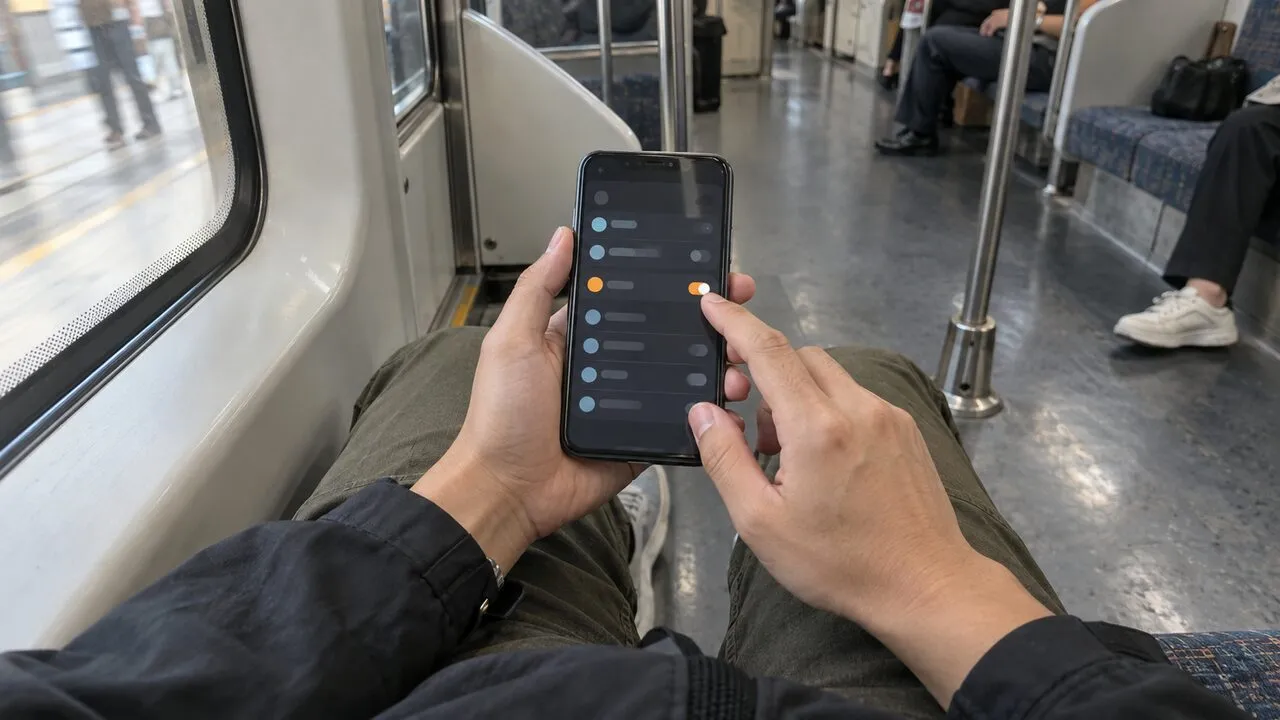
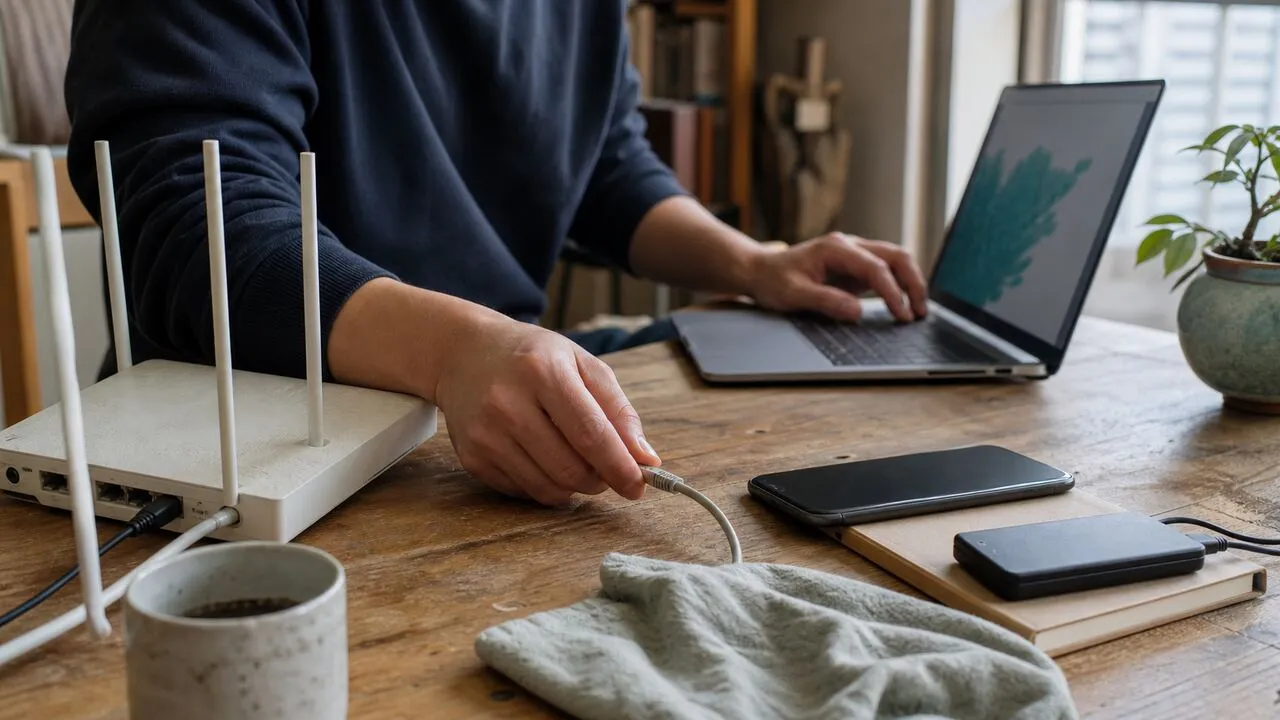
When a VPN will not connect, start by checking whether the internet works with the VPN off. If it does, try one nearby server and then a different network; those two tests quickly reveal whether the problem is one route, the app or device, or the network you are using. Avoid changing every setting at once, because that hides the cause.
Run the 60-second connection test
Disconnect the VPN and open two ordinary websites. If neither loads, the VPN is not the first problem: reconnect Wi-Fi, complete any login page, or test mobile data. If the sites load normally, close and reopen the VPN app and try its automatic or nearest server.
Still no connection? Pick one other nearby server, not a location on the other side of the world. Then switch between Wi-Fi and mobile data if your device and data plan allow it. Record which combination works:
- no internet even with the VPN off points to the base connection;
- one VPN server fails while another works points to a server or route;
- Wi-Fi fails while mobile data works points to the Wi-Fi network or its rules;
- every server fails on every network points back to the app, device, account, or system settings.
This small matrix gives you more useful evidence than repeatedly tapping Connect.
Make sure the network works before the tunnel starts
A VPN needs a working route to its server. Hotel, airport, train, and café Wi-Fi often shows as connected before its captive portal has accepted you. Turn the VPN off temporarily, open a normal browser page, and finish the network’s login or terms screen. Reject certificate warnings and unexpected software downloads; a familiar-looking login page is not proof that the network is legitimate. Our captive portal safety guide explains what to check before signing in.
Weak signal can create a similar loop: the app begins connecting, the underlying link drops, and the attempt times out. Move closer to the access point or wait until the phone has a stable mobile signal. If every app is offline, solve that connection first.
Change the route, not every setting
One unavailable server does not mean the entire VPN is down. Try the automatic choice, the nearest location, and one nearby alternative. A fresh route can avoid temporary congestion or a poor path between your ISP and a particular server.
Keep the comparison fair. Do not simultaneously change the server, protocol, Wi-Fi network, and device. Change one item, wait for a clear success or error, and note the result. If you are unsure which location to test, use the sequence in our VPN server selection guide.
If the tunnel connects but pages are merely slow, that is a performance problem rather than a connection failure. Use the checks in the VPN speed guide instead of reinstalling the app.
Refresh the app and its system permission
Operating systems require explicit permission for a VPN app to create a network configuration. An interrupted first setup, a restored phone, or a changed device policy can leave that permission incomplete. Open the app from the device itself, accept only the system VPN permission it requests, and try again. Do not install configuration profiles received through messages or unfamiliar websites.
Next, fully close and reopen the app. Install the current app and operating-system updates, then restart the device if the connection service appears stuck. A restart clears a stale network session without erasing saved accounts or forcing broad configuration changes.
Check the device clock as well. A badly incorrect date, time, or time zone can prevent secure certificates from validating. Automatic time is usually the simplest setting, especially after a flight or a manual time-zone change.
Look for another tool controlling the connection
Two network-control tools can compete for the same traffic. Another VPN, a work security client, a firewall, an antivirus web filter, a parental-control app, or a custom DNS tool may be active even when its window is closed. Pause only the tool you recognize and are authorized to change, then test again. Re-enable it after the test.
On a managed work or school device, do not remove profiles or security software. The administrator may intentionally control VPN use, certificates, or allowed network routes. Use an approved connection method or ask the administrator which client and settings are supported.
Old manual VPN profiles can also cause confusion. Before deleting anything, confirm which profile belongs to which service and whether an employer requires it. Removing an unknown profile can break access that is harder to restore than the original problem.
Treat network changes as a separate clue
Phones routinely move between Wi-Fi and mobile data, and laptops wake on a different access point. A connection attempt can fail during that handoff even though both networks work separately. Wait for the new network to settle, disconnect the VPN once, and reconnect cleanly.
Public and corporate networks may limit certain kinds of traffic. If the VPN works on mobile data but consistently fails on one Wi-Fi network, the evidence points to that network rather than your account. Do not try to bypass a workplace, school, venue, or local policy. Ask the network operator whether VPN connections are allowed, or use another network you are permitted to use.
Know when account checks matter
If the app signs you out, reports an expired session, or cannot confirm your account, verify that you are using the correct account and that your subscription is active. Never share a one-time code or password with someone claiming they can repair the tunnel remotely.
An account issue usually follows you across networks and servers. A network issue usually changes when you switch from Wi-Fi to mobile data. That distinction keeps billing checks from distracting you when the real cause is a hotel login page or unstable router.
Collect useful details before asking for help
Stop repeating attempts if the device becomes hot, the network drops continuously, or the same error returns after the basic tests. Note the device model, operating-system version, app version, approximate time, network type, servers tried, and the exact error message. Do not send passwords, one-time codes, full IP logs, or screenshots containing private account information.
The fastest diagnosis is a short sequence with one variable at a time: prove the internet works, try two sensible servers, compare two permitted networks, refresh the app, and check for conflicts. Once you know which change alters the result, the connection problem becomes much smaller—and much easier to fix safely.