How to Set Up Lubi VPN Across Your Phone, Tablet, and Computer

One Lubi VPN subscription can be used across all your devices. Install Lubi VPN on each supported phone, tablet, or computer, sign in with the email entered at checkout, then connect and test each device on its own network before you rely on it away from home.
The goal is not to make every screen identical. It is to give each device a simple, verified setup that suits how and where you actually use it.
Start with a small device inventory
List the devices you expect to use during a normal week: perhaps an Android phone, an iPad, a personal Mac, and a Windows work laptop. Lubi VPN supports iOS 15 or later, Android 7 or later, macOS 12 Monterey or later, and 64-bit Windows 10 or later.
Check the operating-system version before downloading anything. An old device that falls below those minimums needs an OS update or should be left outside this setup. Avoid installing unofficial packages simply to force support onto an incompatible system.
Also separate devices you control from devices managed by an employer or school. A managed computer may block personal VPN software or require its own corporate connection. Follow the administrator’s policy rather than changing security settings to bypass it.
Use the checkout email as the account anchor
Your Lubi VPN account is the email address entered when the subscription was purchased. Use that same email on every device you own; you do not need to buy a separate subscription for each operating system.
Store the account details in a trusted password manager instead of sending them through a family chat or leaving them in a shared note. Because the subscription follows one account, anyone who can access that mailbox may also be able to receive account-related messages. Protect the email account with a unique password and two-factor authentication when the email provider offers it.
If several people in a household use shared hardware, decide who maintains the subscription and who is allowed to change its settings. Lubi VPN’s published product facts say that one subscription works on all devices, but they do not state a specific simultaneous-connection limit or separate household profiles. Do not build a family policy around a number or feature that has not been documented.
Install one platform at a time
Begin with the device you understand best. Download the correct installer from the official Lubi VPN download page, install it, and sign in with the checkout email. Complete the operating system’s VPN permission prompt, select an available server, and connect.
Then repeat the process on the next device. The Android setup guide covers Android’s connection permission and background behavior, while the iPhone setup guide explains the iOS permission flow. On macOS or Windows, let the official installer finish and approve only the system prompts you expected from the installation you just started.
Installing sequentially makes troubleshooting easier. If a problem appears, you know which device and step introduced it instead of untangling four installations at once.
Give each device a real connection test
A connected badge is a useful signal, but a short real-world test is better. On each device:
- Open a normal webpage before connecting so you know the base network works.
- Connect Lubi VPN to an available nearby server for a responsive everyday baseline.
- Reload the page and use one activity that matters on that device, such as messaging on a phone or a call on a laptop.
- Put a mobile device to sleep, wake it, and confirm the connection state again.
- Switch between Wi-Fi and mobile data where applicable, then check whether the app reconnects.
Run this test while you are still at home. Discovering a missing permission or an outdated OS is much easier there than at an airport, hotel, or client office.
Match the connection habit to the device
Your phone changes networks frequently, so it needs a quick connection check after moving between mobile data and public Wi-Fi. A home tablet may stay on one trusted network most of the time. A travel laptop may need Lubi VPN whenever it joins hotel or café Wi-Fi, but a managed work computer may have different rules.
Keeping a VPN on all the time can be convenient, but it is not the only sensible routine. The right choice depends on the network, task, battery constraints, and whether a service objects to VPN traffic. Use the decision framework in when a VPN should stay on instead of forcing one setting onto every device.
Understand plan coverage across the device library
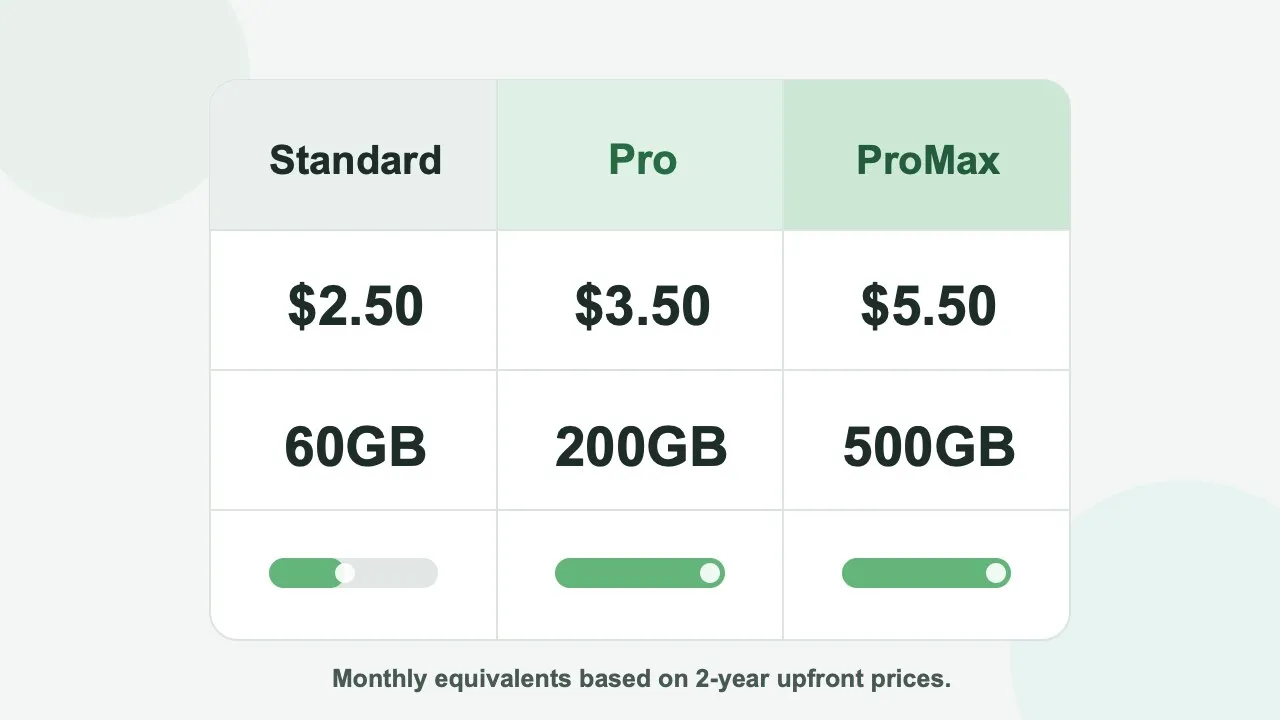
The same account does not mean unlimited high-speed traffic. Lubi VPN’s monthly high-speed allowance belongs to the subscription: Standard includes 60GB, Pro 200GB, and ProMax 500GB. After the allowance is used, speed-limited backup servers remain available rather than the service disconnecting.
Server access also follows the plan. Standard includes selected server locations; Pro and ProMax include all server locations, including Taiwan. If a location appears on one device but not another signed into the same account, first update both apps and compare their state. Do not assume that purchasing another device-specific subscription is the answer.
Keep the setup maintainable
Once a month, or before a trip, open Lubi VPN on every device you plan to carry. Install operating-system and app updates, confirm you can still sign in, connect once, and remove old devices from your own inventory when you no longer use them. If a phone or computer is lost, secure the email account tied to the subscription and follow the device maker’s remote-lock or erase process.
The clean multi-device routine is straightforward: one subscription, one protected account email, the official app on every supported device, and a separate connection test for each. That gives a household or individual a repeatable setup without inventing limits, promising identical behavior across platforms, or treating every device as if it uses the same network.