Is It Safe to Work from a Café? A Network Security Guide for Remote Workers
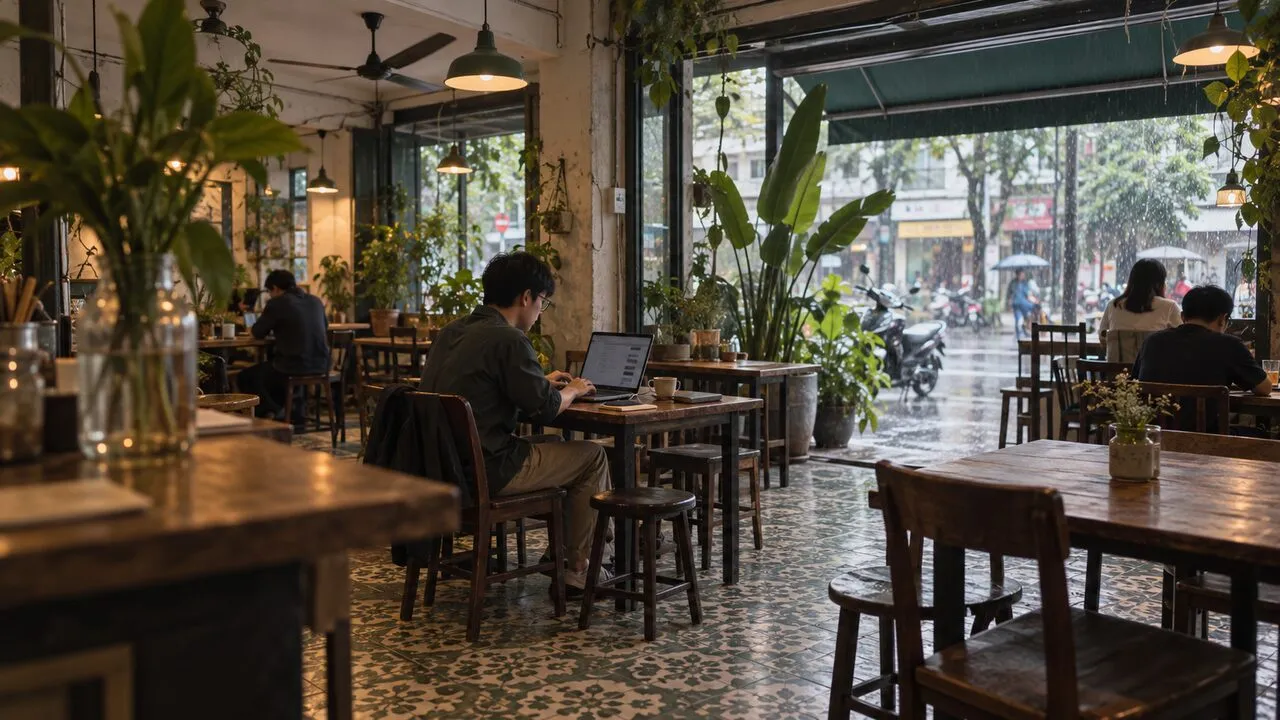
Working from a café can be reasonably safe, but only if you treat it as a public place rather than a temporary private office. Verify the network, encrypt the connection, control what people can see, and save the most sensitive work for a trusted location.
The useful question is not whether every café Wi-Fi network is dangerous. It is whether the task in front of you matches the risks you can actually control.
Start by classifying the work, not the café
Reading public documentation, drafting notes with no customer data, or joining a routine call creates a different level of exposure from approving payroll, opening production credentials, reviewing identity documents, or exporting a customer list. Decide what the session involves before opening the laptop.
A simple three-level rule works well:
- Low sensitivity: public research, planning, and offline writing usually need no special environment beyond normal device security.
- Moderate sensitivity: work email, cloud documents, project tools, and ordinary calls need a verified network, encrypted traffic, and attention to the screen and microphone.
- High sensitivity: administrator consoles, financial approvals, confidential records, access-key changes, and incident response belong on a trusted connection in a private place whenever possible.
Encryption can protect traffic in transit, but it cannot stop the person at the next table from seeing a spreadsheet or hearing a client name.
Confirm the network before the first login
Ask staff for the exact network name or compare it with a trustworthy notice inside the venue. A familiar café name in the Wi-Fi list is not proof that the hotspot belongs to the café, and the strongest signal is not automatically the correct one.
If a login page appears, read what it asks for. Accepting terms, entering a venue code, or starting a timed session may be normal. A hotspot should not need the password for your email, social account, cloud workspace, or employer. Certificate warnings, configuration-profile requests, and unexplained downloads are reasons to stop and switch to mobile data.
Complete a verified captive portal first, then establish the VPN connection before opening work services. Our guide to checking a free Wi-Fi login page explains why that order matters.
Protect the connection, then verify it stayed protected
On shared Wi-Fi, a VPN encrypts traffic between your device and the VPN service. That reduces what the local operator or another person on the same network can inspect in transit. It does not verify the hotspot, block every phishing page, or make a compromised laptop healthy.
After connecting, confirm that the VPN still shows an active connection. Laptops can sleep, roam between access points, or rejoin a remembered network. If the connection drops, stop sensitive work until protection is restored. For a short approval or account-recovery step, a personal mobile hotspot may be a better choice than troubleshooting public Wi-Fi under time pressure.
Use your employer’s required corporate VPN, zero-trust client, or managed-device rules exactly as instructed. A personal VPN protects the public network around the device; it does not replace the company’s access controls.
The room can expose more than the router
Choose a seat where the display is not facing the queue, entrance, or a mirror. Reduce notification previews, use headphones, and avoid saying customer names, access codes, financial figures, or internal project details aloud. A privacy filter can help in a crowded room, but screen angle and awareness still matter.
Video calls create a second window into your surroundings. Check the frame before joining, blur the background if the tool permits it, and remember that people nearby can hear both sides through an open speaker. If a call becomes sensitive, move somewhere private instead of trying to whisper over café noise.
Do not leave a laptop unlocked while collecting a drink. Taking the device with you may be inconvenient; losing physical control of an authenticated work session is worse.
Keep accounts resilient when the environment is distracting
Cafés encourage divided attention: orders arrive, seats move, calls begin, and battery warnings appear. That is exactly when a plausible login prompt or unexpected MFA request is easiest to approve without checking.
Use unique passwords stored in a password manager, enable MFA, and reject any approval you did not initiate. Prefer an authenticator, passkey, or security key over reading a one-time code aloud or exposing it on a lock-screen preview. Install operating-system and browser updates before leaving home rather than using the café session to recover from a failed update.
For broader preparation outside the café, the business travel account-safety guide covers recovery methods, support contacts, and managed-device expectations.
Use a repeatable arrival and departure routine
When you arrive, verify the network name, complete only a legitimate portal, connect protection, and place the screen where casual viewing is difficult. Open only the files and tools the session actually needs. If the task becomes more sensitive than planned, postpone it or move to mobile data and a private setting.
Before leaving, finish file sync, sign out of unusually sensitive services, lock the device, disconnect from the hotspot, and forget networks you do not use regularly. Check the table, power outlet, and chair for storage devices, security keys, charging adapters, and written notes.
A café does not have to be a security-free zone. It works best as a place for bounded tasks: verified connection, limited data, controlled screen, protected accounts, and no unattended device. Keep the public Wi-Fi safety checklist for the connection itself, then add the physical and work-specific habits that a remote office requires.